How to free up disk space on Windows 11 and 10
A practical checklist to find what is filling your drive and safely reclaim gigabytes, using built-in tools and a few free apps.
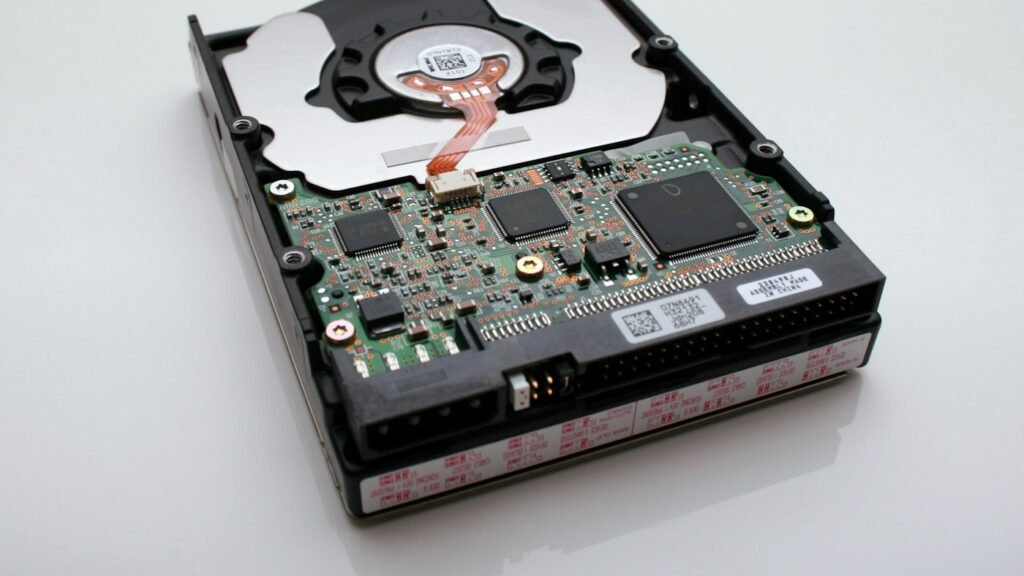
A nearly full drive slows down updates, stops large downloads and can make Windows feel sluggish. Before you buy a bigger SSD, work through this checklist. Most people recover between 10 and 50 GB.
Step 1: See what is actually using the space
Guessing wastes time. A disk analyzer scans your drive and shows the biggest folders and files visually, so you can spot a forgotten game, an old phone backup or a folder of videos in seconds.
WinDirStat
The classic free way to find out what is eating your disk space.
Everything
The fastest way to find any file on Windows, close to a must-install.
Open WinDirStat, pick your C: drive and let it scan. The big coloured blocks in the treemap are your largest files. Click one to see where it lives. If you already know a file name, Everything finds it instantly.
Step 2: Use Storage Sense and cleanup recommendations
- Open Settings, then System, then Storage.
- Click Temporary files, tick what you do not need, such as Delivery Optimization files and old Windows Update files, and remove them.
- Open Cleanup recommendations to see large and unused files, and apps you rarely open.
- Turn on Storage Sense so Windows clears temporary files and the Recycle Bin automatically.
Step 3: Remove apps and games you no longer use
Go to Settings, then Apps, then Installed apps, and sort by size. Modern games can take 50 to 150 GB each, so uninstalling one you have finished often frees more space than everything else combined.
Step 4: Clear your Downloads folder
The Downloads folder quietly collects installers, ZIP files and videos for years. Sort it by size and delete what you do not need. If you want to keep something, move it to an external drive or cloud storage.
Step 5: Move photos and videos off the system drive
Phone backups are often the biggest folder on a PC. Move them to a second drive or an external disk, or store them in cloud storage with files-on-demand, so they show in File Explorer without taking up local space.
Step 6: Advanced space savers
- Turn off hibernation if you never use it. Run
powercfg /h offin an administrator Terminal to delete the hiberfil.sys file, which can be several gigabytes. - Delete old restore points in System Properties, then Configure, under System Protection. Keep at least one recent point.
- Compress rarely used folders with a tool like 7-Zip before archiving them.
Do not delete: anything inside the Windows, Program Files or ProgramData folders by hand. Use Settings or the app’s own uninstaller instead.
Frequently asked questions
Is it safe to delete Windows Update cleanup files?
Yes. They are copies of old update files. The only thing you lose is the ability to uninstall those older updates.
How much free space should I keep?
Aim for at least 15 to 20 percent of your drive free. SSDs and Windows updates both work better with breathing room.